Files in one place
Upload documents and photos, then choose which folders to sync across devices.
 Fed3.العربية
A shared workspace that runs Nextcloud on a device you manage. Files are stored on your organization’s device. Your team can open them from a phone or computer according to their permissions.
Illustrated guideYour hardware. Your shared workspace.
FED3 · 02 / 03A community center could share a training folder from its own computer. Trainers can edit it, and participants can view the files shared with them.
Upload documents and photos, then choose which folders to sync across devices.
Give each person an account. Share a folder with a team and decide who can view or edit it.
Sync carries edits and deletions across devices. Keep a separate backup and test that you can restore it.
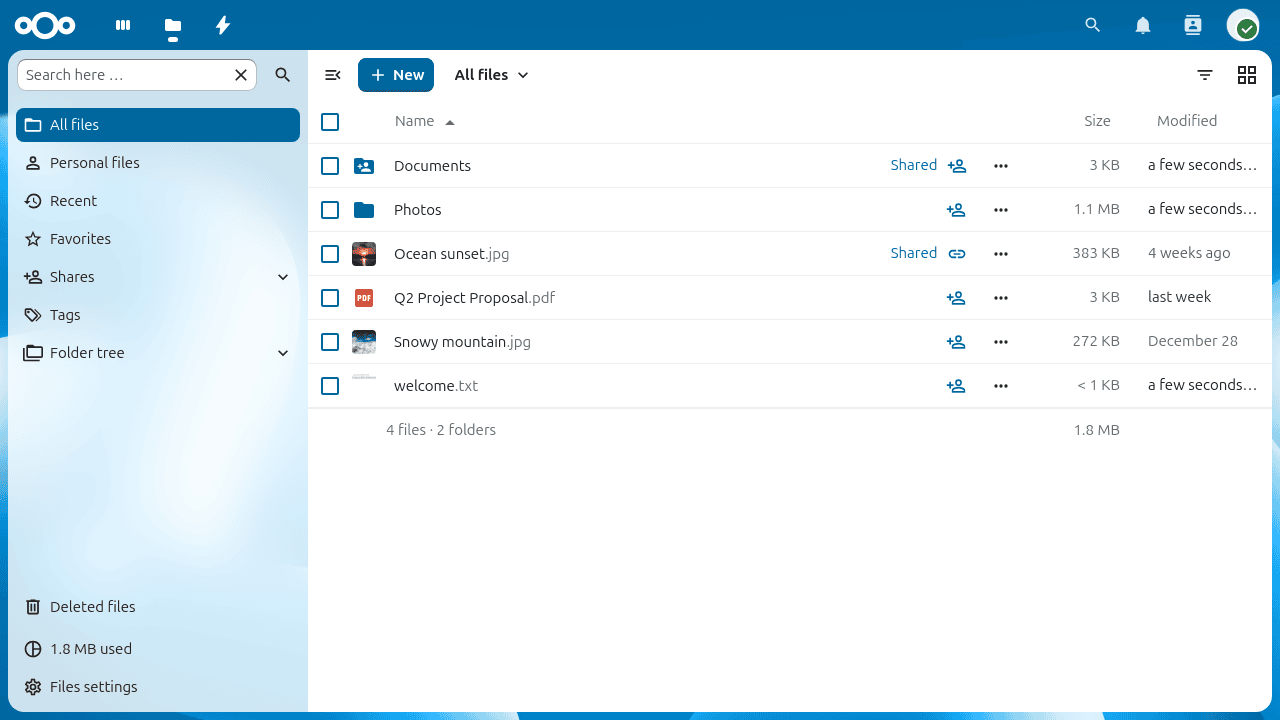 Open full size
An example with a sample file.
People on the same network open it with an account and permission.
These specs come from the initiative’s guide for a small Linux trial. Before rolling it out, check drive health, storage space and the release requirements for your users and apps.
| Component | Minimum for the trial | Recommended in the guide |
|---|---|---|
| Memory | 2 GB RAM | 4 GB RAM or more |
| Processor | 64-bit / dual core | 64-bit / quad core |
| Storage | 128 GB, preferably SSD | 500 GB SSD or more |
| Network | Stable connection | Ethernet where possible |
The guide demonstrates lightweight Linux using Lubuntu and Nextcloud Snap. Check current operating-system support and version requirements before installation. Windows and Docker follow a different technical setup.
Copy files from the computer and USB drive before installing. Installation can erase the selected drive.
Provide stable power and ventilation, and prevent unintended server sleep.
Assign updates, accounts, backups and recovery, with a backup contact who knows the setup.
If you coordinate for an organization or community center, complete the survey so our team can review what you need for a trial.
Loading survey…
Start on your local network with a sample file.
Step 1 / 5
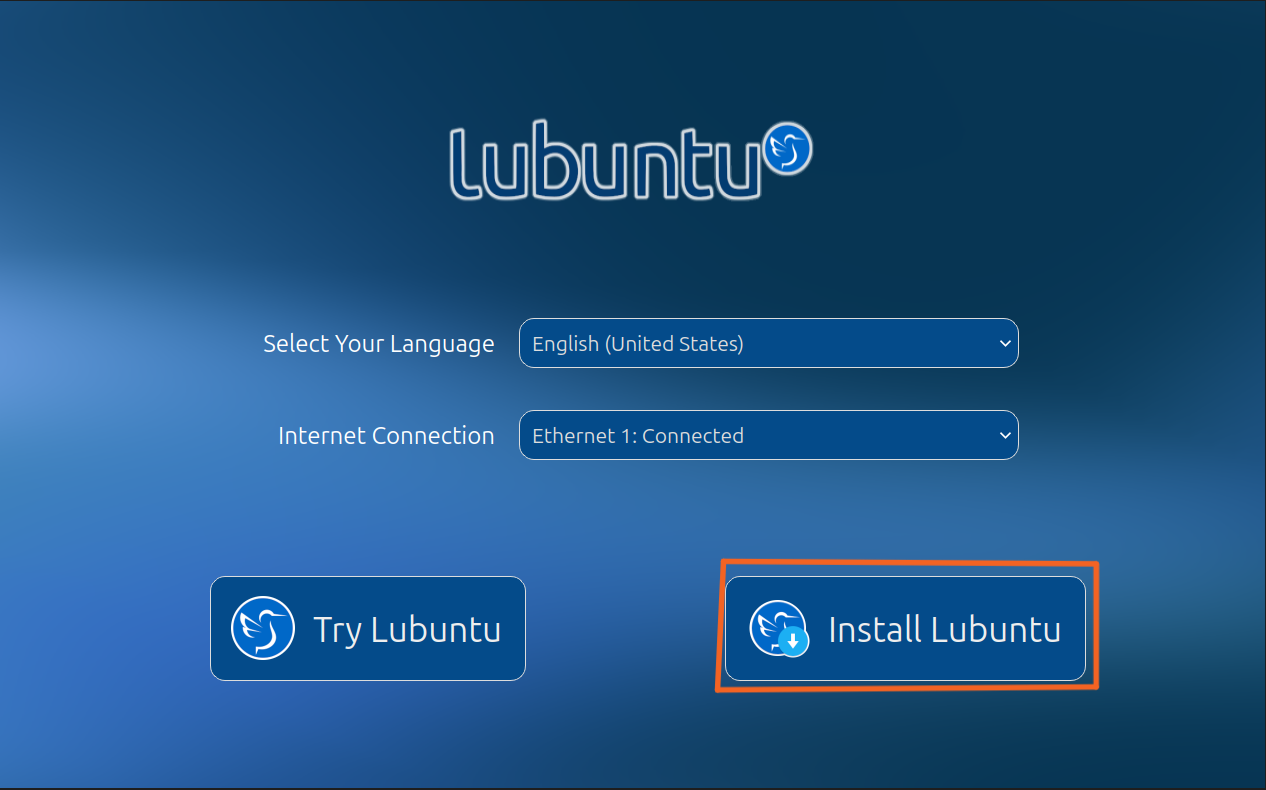
Back up the computer and USB drive first. If you need a new system, download the Lubuntu image, select it and the USB drive in Rufus, then boot from USB and choose Install Lubuntu. Erase Disk wipes the selected drive.
 Open full size
FOR USERS / EVERYDAY USE
Practise with non-sensitive files. Confirm sign-in, sync, sharing and recovery before expanding use with your team.
 Open full size
Open the address your administrator provided and check it before signing in. Use your own account and configure two-factor authentication when available.
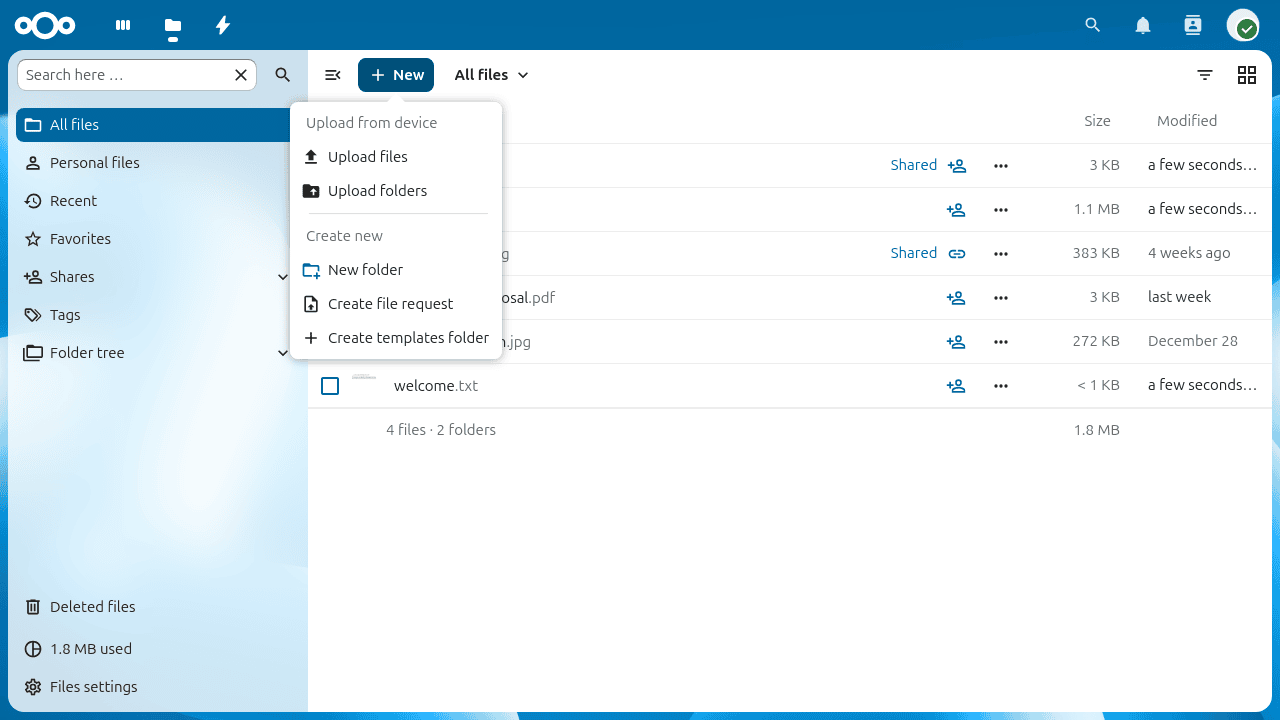
Create a test folder and add a file with the add button or drag it into the browser. Open it and download a copy to check the result.
Share with a user or group, or create a link according to server policy. Set viewing or editing rights, a password and an expiry date where available. Practise revoking access.
Install the official Nextcloud client, enter your server address and sign in. Select sync folders and check that your test file reaches the other device.
Check deleted files or file versions if enabled. Availability depends on retention and free space. This does not replace an independent backup.
Check completed backups and free space. Retain several recovery points.
Schedule maintenance and back up before important updates.
Repeat and document recovery tests. Review accounts and sharing links.
Local access can work between devices on the same network, depending on setup. External access, updates and external services need suitable connectivity.
Deletion or errors can propagate through sync. Keep a separate backup, recovery points and evidence that you can restore the service.
It depends on accounts, permissions and encryption. Administrators have broad operational access. Define its limits before use; local storage alone does not guarantee privacy.
The software is open source. Hardware, storage, power, backup, maintenance and support still have costs. Assess your needs first.
Check the server address. The administrator should review trusted_domains and add the intended address rather than disabling domain validation.
Check the client status, connection and available space. Close the open file if needed. Keep both copies until you have compared their contents.
Review the available quota with your administrator. Agree on archiving, capacity and retention before removing shared files or backups.
Check connectivity, power and the address, then record the error. If it persists, the administrator needs to review logs, service status and backups.
Fed3 / Initiative stations
Explore digital alternatives and communities, or return to the start of the journey.